![Apogee Logo White.png]](https://knowledge.apogeedigital.com/hs-fs/hubfs/Apogee%20Logo%20White.png?height=40&name=Apogee%20Logo%20White.png)
Applies to: Apple Silicon Macs that previously used the legacy "Symphony Control" software, or were set up from an older Mac using Migration Assistant.
Symptoms
- Kernel panics (unexpected restarts) when the Symphony I/O MkII is connected or after installing Control 2.
- Symphony I/O MkII not detected in Control 2 or Audio MIDI Setup, even after a clean uninstall and reinstall.
Cause
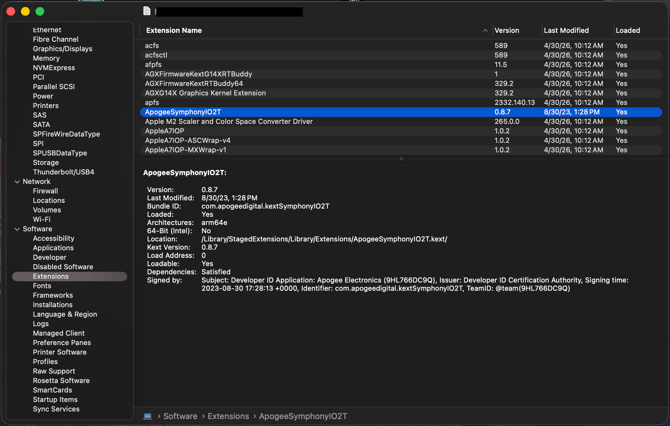
The legacy Symphony Control software used a kernel extension (KEXT) named ApogeeSymphonyIO2T (bundle ID com.apogeedigital.kextSymphonyIO2T). macOS keeps a copy at /Library/StagedExtensions/Library/Extensions/ApogeeSymphonyIO2T.kext/, a folder protected by System Integrity Protection that the uninstaller cannot modify. This stranded copy can keep loading and conflict with the new DEXT driver used by Control 2.
Confirm the staged extension is present
After uninstalling all Apogee software, open System Information (Applications > Utilities), click Extensions in the sidebar under Software, and wait for the list to load. If ApogeeSymphonyIO2T still appears, continue below. If it is not listed, this article does not apply to your issue.
Before you begin
This procedure clears ALL staged third party kernel extensions, not only the Apogee one. Other software that uses kernel extensions may ask you to reapprove or reinstall afterward. This is expected. Your data is not affected.
Clear the staged extension
Step 1: Open Terminal from the Applications > Utilities folder and run the following command (enter your computer password when asked, nothing appears as you type):
sudo kextcache --clear-staging
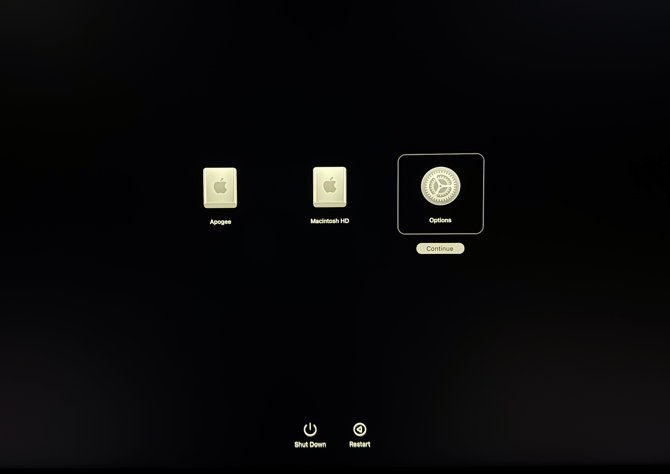
Step 2: Power off your Mac, then power it back on while holding the power button. Select the Mac Boot Options menu, choose your user account, and log in.
In the top menu bar, select Utilities > Terminal and run the following command:
kmutil trigger-panic-medic --volume-root /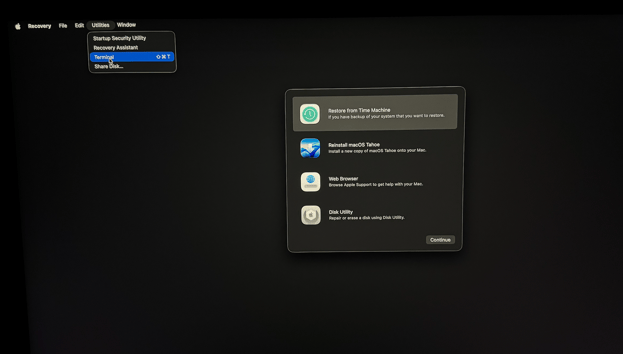
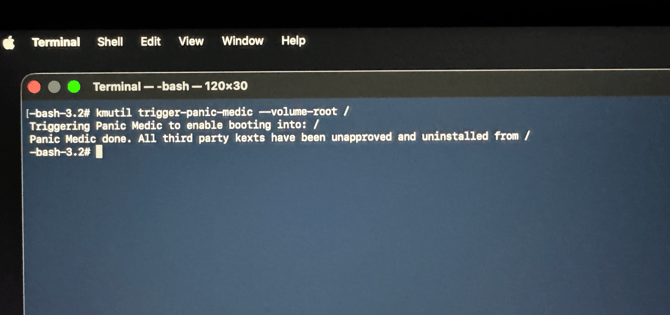
Restart your Mac to return to normal mode.
After the restart you will see a pop up message saying extensions were removed, this lets you know the process was successful.